

Getting Started
To get started please follow the set-up guide below in the order we provide so you can be set up and ready to go in the shortest time
When you login for the first time you will need to set up some basic requirements
You can see a walkthrough of the system in the video below and the set up guide provides the steps reqiuired to get things set up.
Compliance
Please click the Compliance link in the navigation above to familiarize yourself with the do and don’ts of sending SMS marketing messages
We provide full details and links to the resources to make sure your campaigns are compliant
Step 1
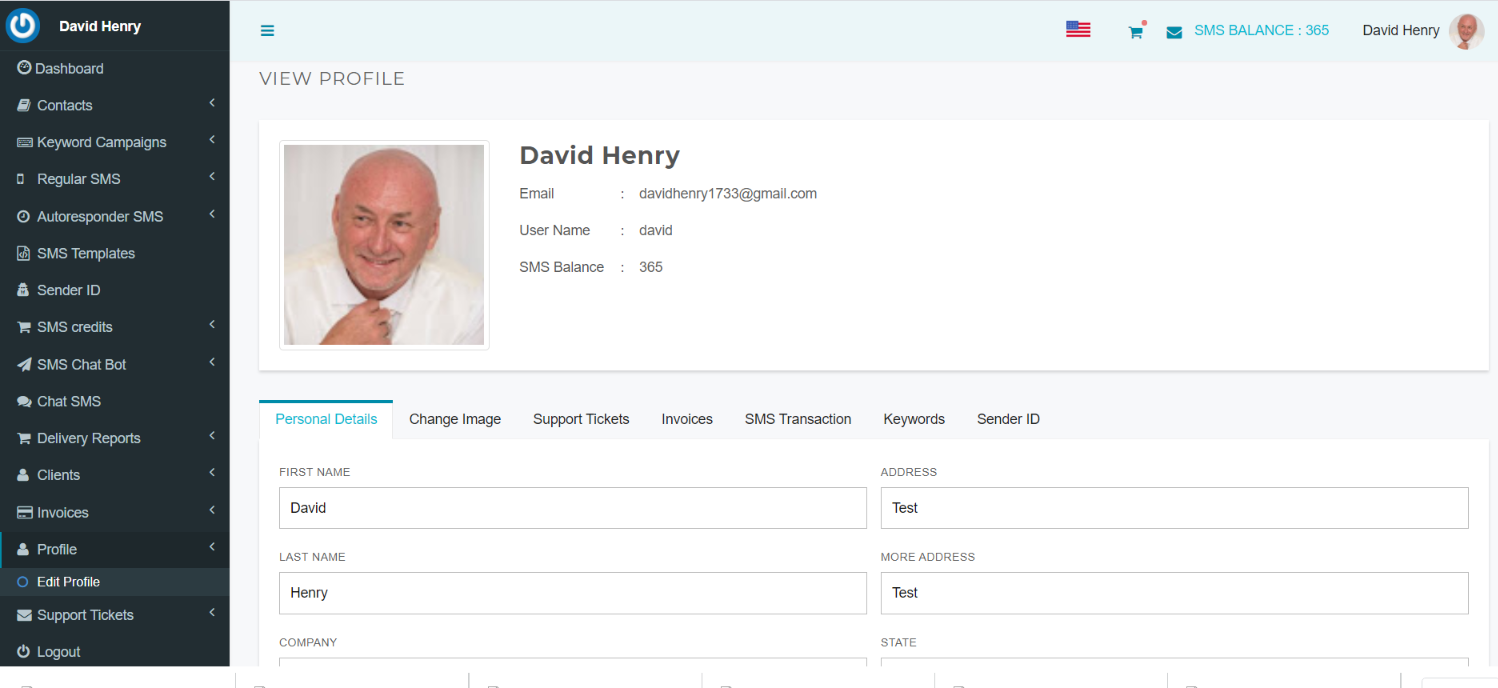
Complete the profile section below
Enter your personal and business details here and this page is where you can access your own details, view invoices, support tickets, SMS transactions, keywords and sender IDs
Step 2
Request your number to use in your campaigns
You can text enable your landline number or request a new number to use
Please click here to access the guide
Step 3
Buying Credits
You send your SMS campaigns using credits that are automatically added to your account after purchase.
The credits are available on as pay as you go basis and the cost of each credit is based on your country of origin which is set by default
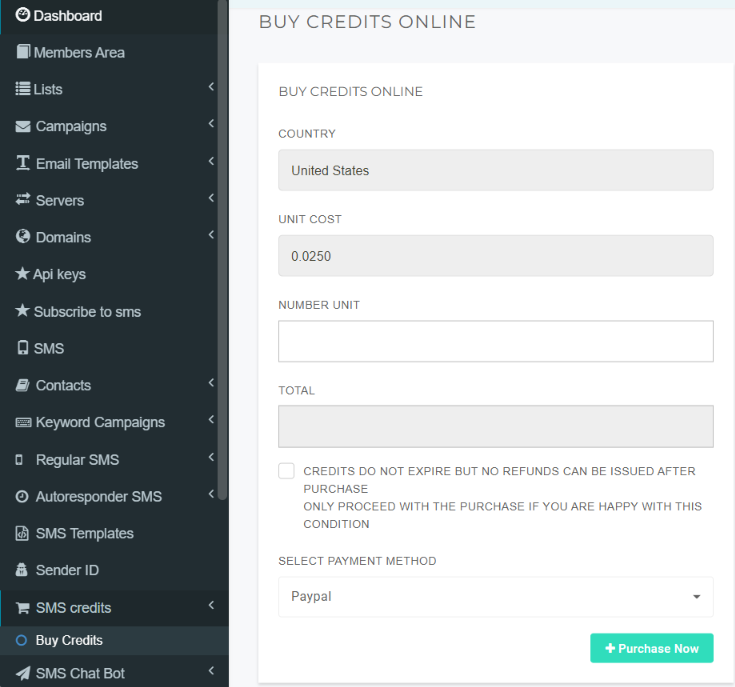
Add the number of credits you wish to purchase and the total amount due will be displayed
The payment method is by PayPal
The credits are automatically added to your balance and the credits are deducted automatically from your balance based on 1 credit per 160-character message
If your message exceeds 160 characters 2 credits will be deducted
Credits are deducted for outbound and inbound messages
Credits are purchased on a pay as you go basis and do not expire
View Invoice
Once you make your purchase the credits are automatically added to your account and are deducted automatically based on the number of messages sent
You can view your invoice and print or save for your own records
Step 4
Adding Contacts
We store contacts in a phone book, you can create a new phone book for each new list you wish to create. If you are setting up lead generation keyword campaigns you can create a seperate phone book for each campaign and the contacts are added automatically from all replies
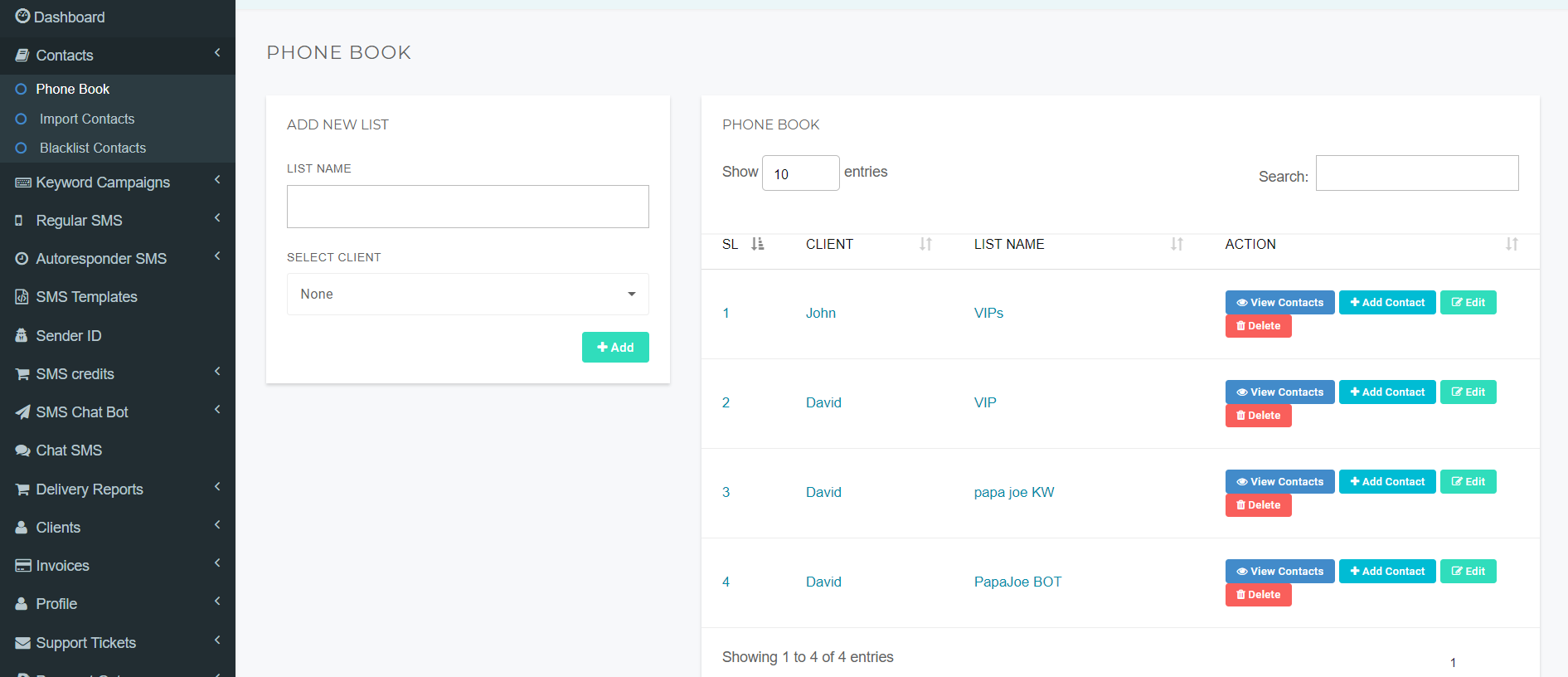
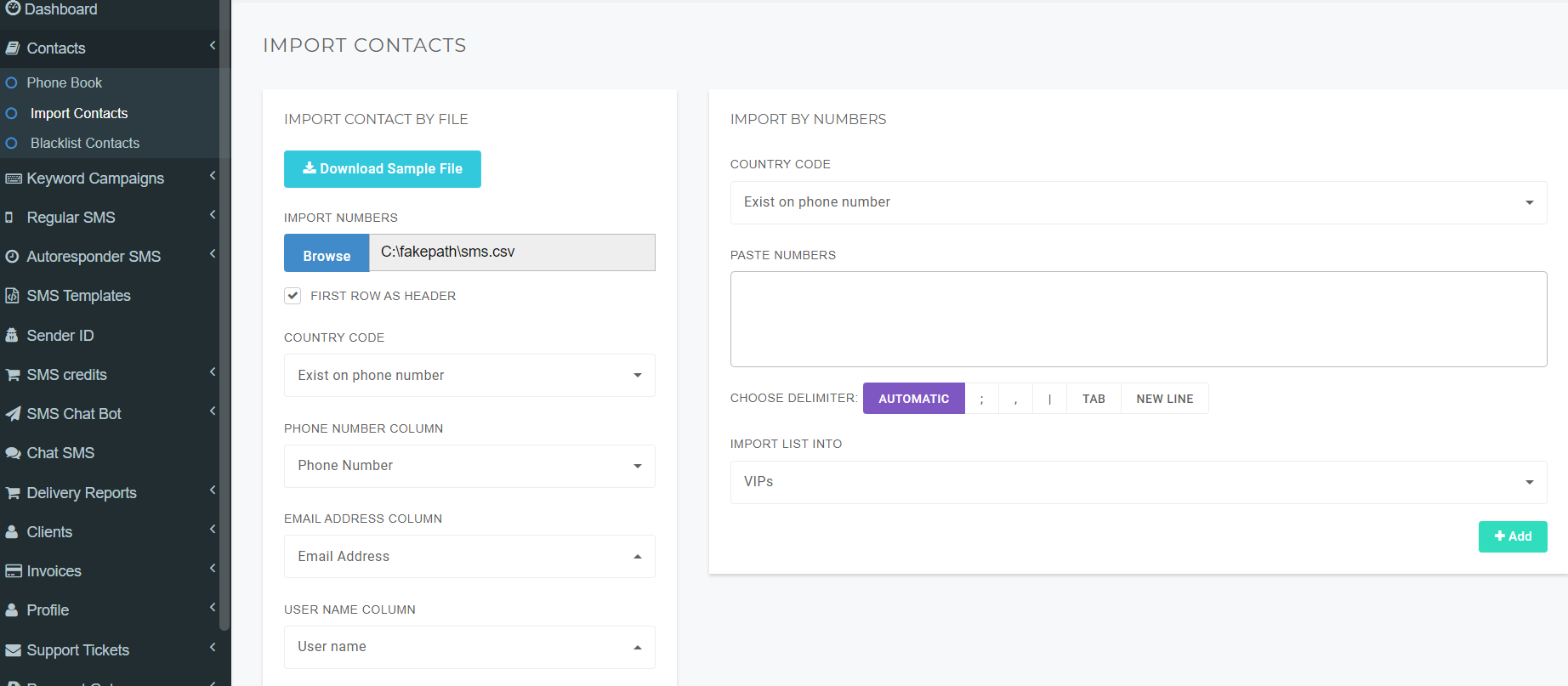
If you have any existing customers and subscribers with mobile numbers you can create a phone book and add the contacts either manually or you can import clicking on import contacts
Step 5
Creating Client Accounts
Providing services for clients can be done using your own number in any tests or trials or you can allocate a unique number to your client and all campaigns are sent using the client number, this enables the client to use the number in promotions and their customers can save the number for future
Setting up a campaign using your number
You will see in the video tutorial and guides below, everything you set up for your own campaigns can be created for your clients, if you are setting up a trial, the client may not want to commit to a number rental for 12 months, so trials are normally completed using your own sender number
To do this, create a contact phone book list for your client and create a campaign using a unique keyword which is allocated to your client
This ensures all new leads generated from the campaign are added to the clients contact list, normally after a successful trial, the client is very keen to use their own number and this is requested and allocated in exactly the same way as your number is provided
We provide a full client portal
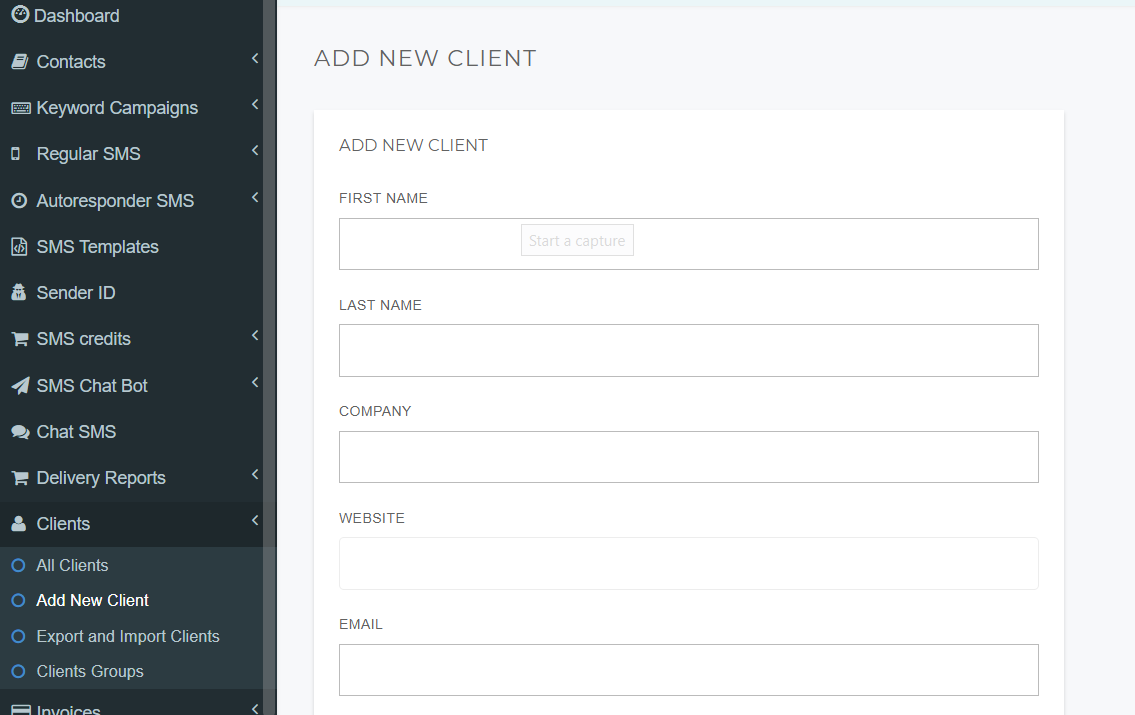
You can provide full agency services for clients and you can create accounts in the app and also create client groups to easily manage larger client bases
To add a new client click on add new client
You can add manually or import your existing clients
Request your Client Number
You follow the exact same process to request to text enable an existing landline or request a new number
Please click here to access the guide
Allocating Client Credits
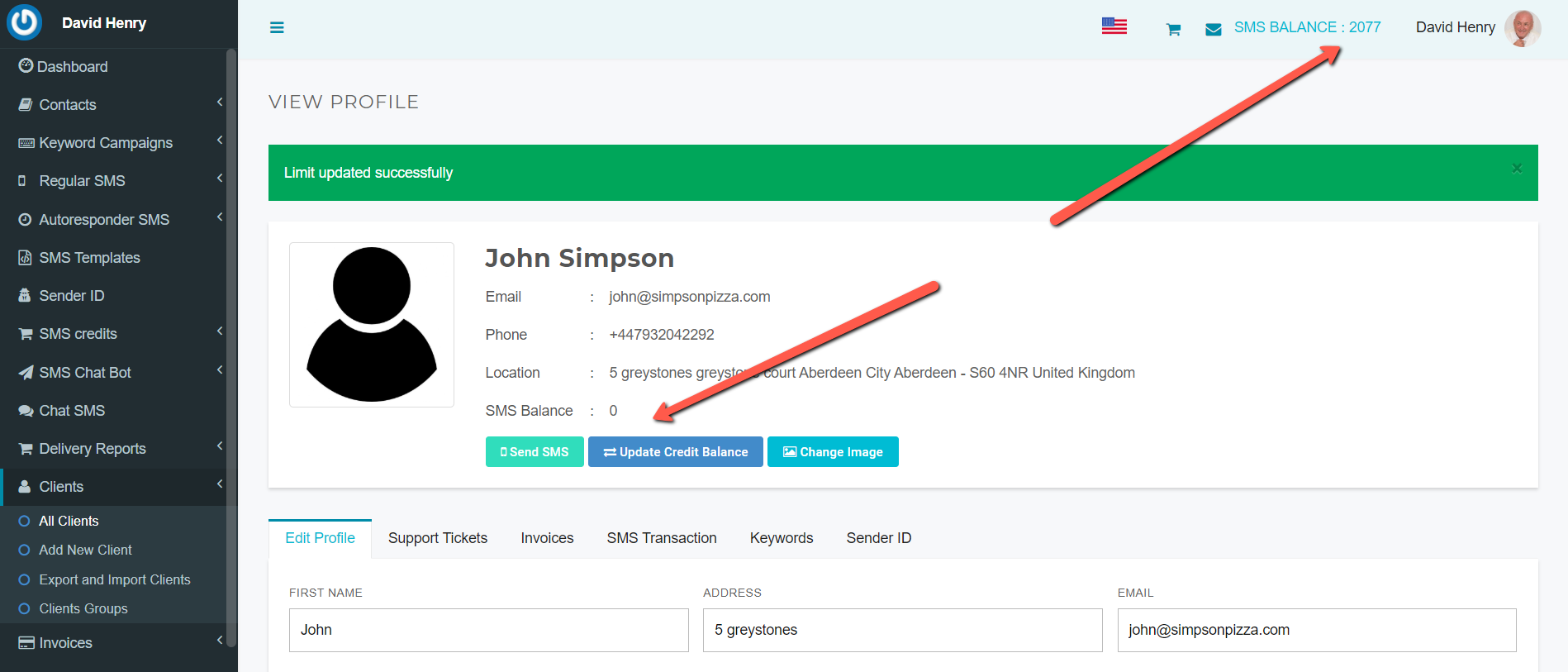
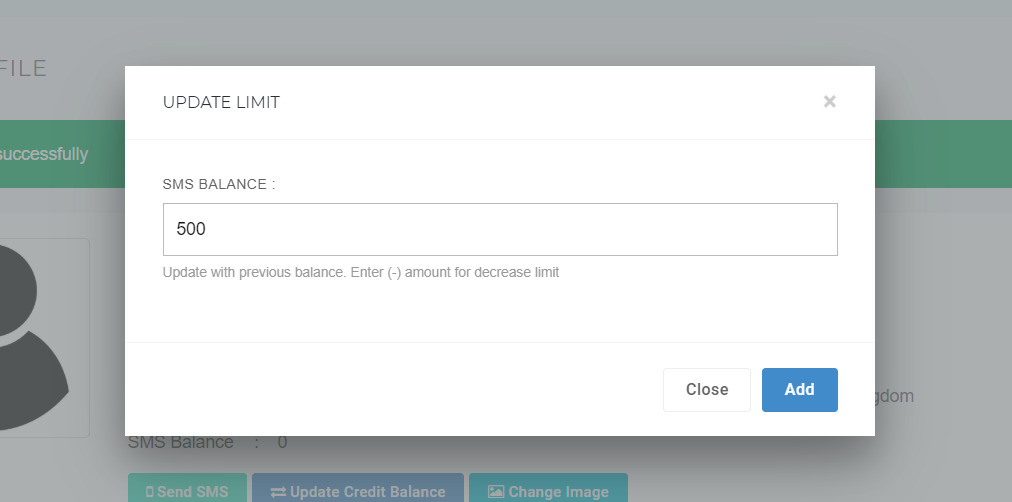
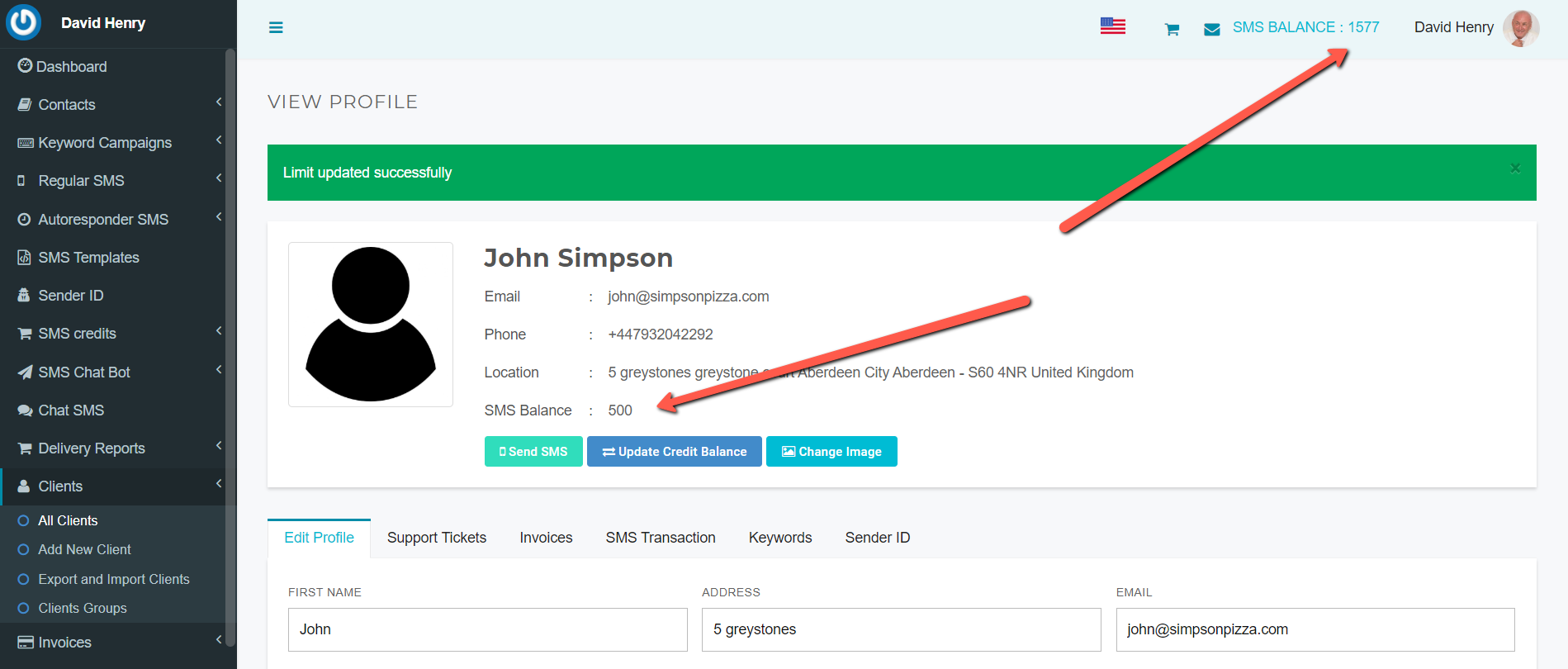
You can manually add credits to your clients account and the credits are automatically deducted from your balance and added to your client balance.
You can also deduct credits from a client and these are added back to your balance
Click the link in the client profile, “Update credit balance”
Next Step
Now you have the basics of the set up completed its time to create your campaigns, automated chat bots and lead generation campaigns