
Creating Campaigns to send to existing Contacts
Please watch the short video tutorials and we also provide step by step instructions below
SMS Templates
You can insert a range of merged fields to help personalize and create the text that can be edited with new links if required
You can create a range of templates based on the type of messages you are sending and simply select the template when you are creating your campaigns
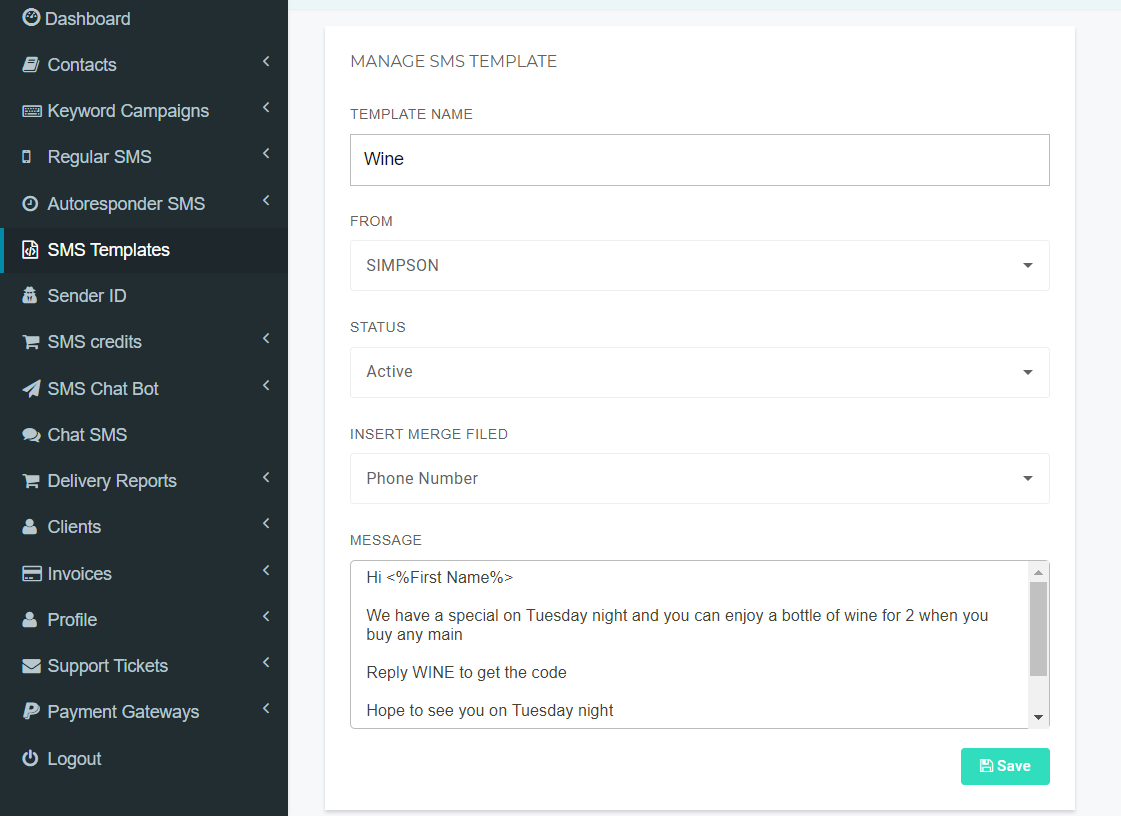
Creating Keyword Campaigns for existing customersYou can create multiple keyword campaigns to target offers and build your list of subscribers
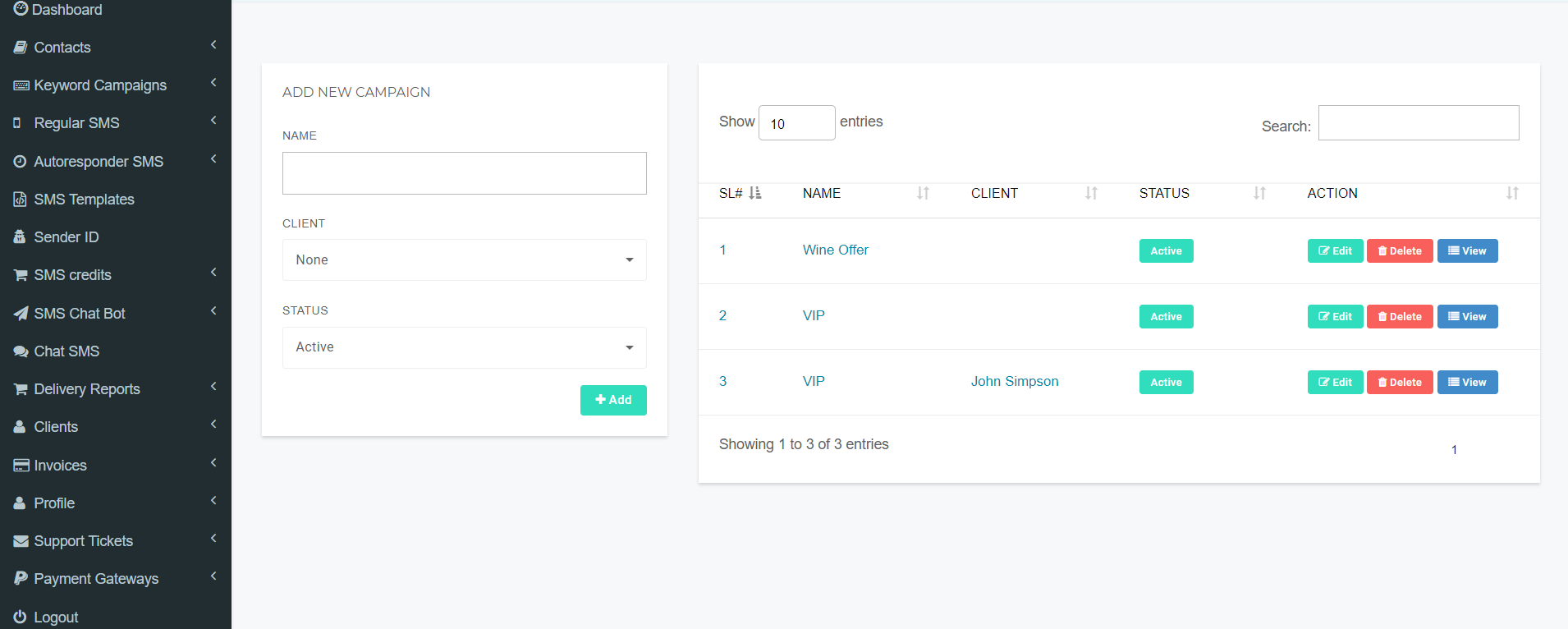
To get started click Keyword Campaigns and add a campaign name
If you are creating a client campaign, select the client and click add
Add a new Keyword
Once you have created your campaign click on add a new keyword
Select the campaign and add the keyword which can be a maximum of 11 characters
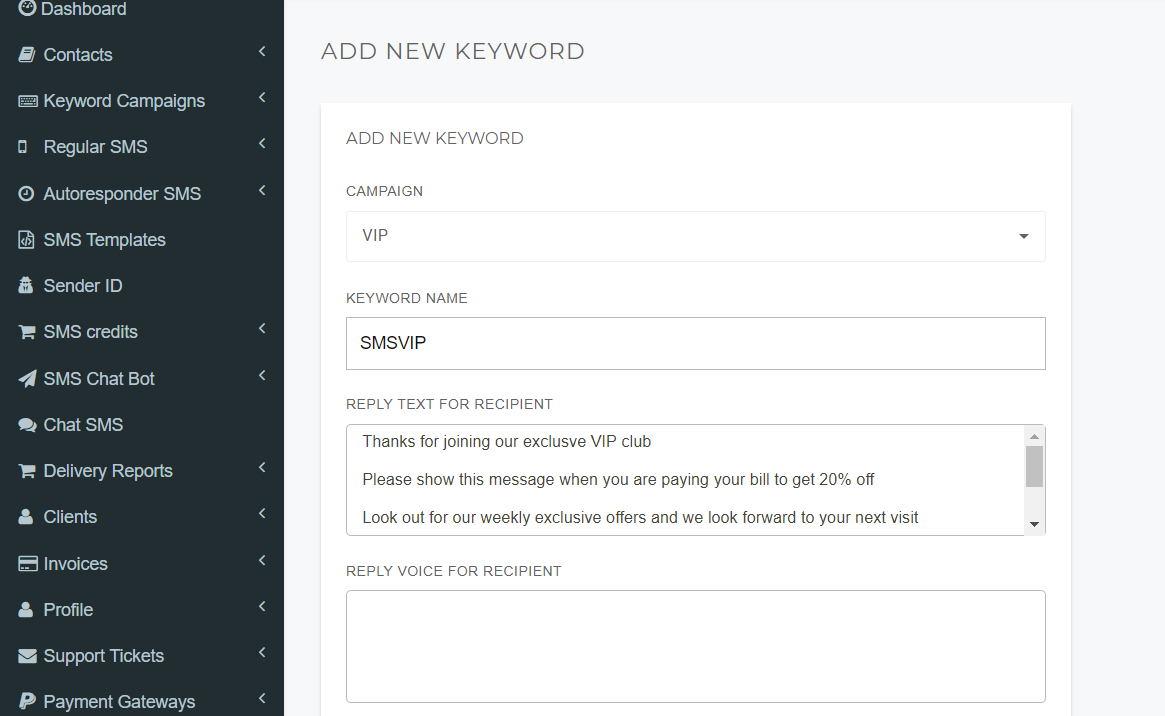
Enter the text you want your susbcribers to see on the reply message
Set the status to live
Select the contact list you wish to add your new subscribers
The name and number of each reply is added to the phone book contact list you select and this list can be used to send bulk or autoresponder messages
Set the time period you wish to provide access to this offer and click add
You can add multiple keywords to a campaign and you can create multiple campaigns
Click view all keywords to view your campaigns and keywords, click manage to make changes
Sending SMS Campaigns
Send Quick SMS
Use this method to send 1 way alerts and offers and this is also the way to send a quick SMS to a few subscribers, you can copy and paste the numbers and send the campaign using this option
The message will be sent using the sender ID as the sender if you are in the UK and this is an outbound only message and replies are not enabled
Bulk SMS
Send bulk campaigns which can use the keyword feature
To use this feature, select the campaign and the keywords created for this campaign will be in the keyword field drop down
If you use a keyword the message is sent using the sender ID telephone number, if no keyword is selected the message is sent from your sender ID
If you use the keyword option, the contact details of the reply messages are automatically added to the contact list you specified in the keyword campaign set up
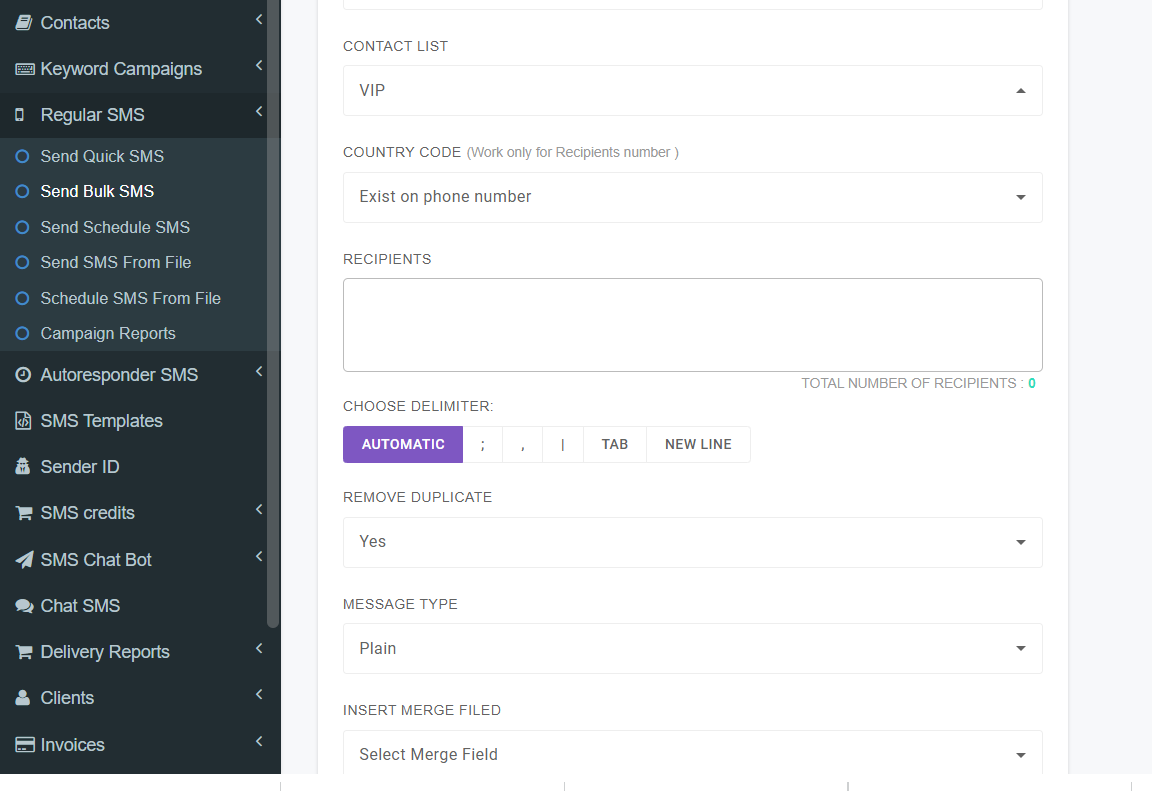
You can send to a contact list in your phone book or copy and paste the list of numbers to send the message
Always provide the opt out link and you can also use the merge fields to personalize the message
Send instantly or schedule the message to send at a later time/date
Autoresponder SMS
It is possible to set up automated follow up messages
You can choose to set up automated message based on day, week month etc or to set up a custom time that can be different for each message use the custom time option
Please note:
If you choose to send at regular intervals the same message is sent based on the time intervals set up so be careful using this feature